
Switching between Windows and Ubuntu often feels like moving into a new house where the light switches are in the wrong places. You have the power of the Linux terminal, but you miss the “little things” the intuitive gestures, the clipboard history, and the simple convenience of a hibernate button.
After migrating my daily driver, I’ve compiled the essential tweaks to bring Windows-level polish to your Ubuntu environment. So that you don’t have to fight with your muscle memory
1. Bringing Back Hibernation
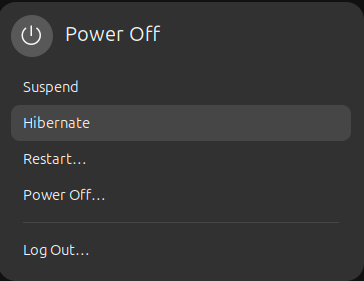
While “Suspend” is fine, “Hibernate” is essential for saving battery during long breaks. Ubuntu hides this by default, but we can restore it.
For that i used a third party script which automates the heavy lifting of swap file configuration you can check it out here and follow the instructions as stated there and reboot system and then systemctl hibernate command should work and then we can proceed with adding the UI button for it.
1. First you’ll have to install GNOME Shell integration chrome extension
2. Install the connector for it with the below command
sudo apt-get install gnome-browser-connector
3. Add the extension Hibernate Status Button now and if all worked correctly you should be able to click hibernate in power menu and hibernate your pc
4. Troubleshooting: If the button doesn’t appear even though systemctl hibernate works, you may need to tweak your GNOME policy settings as detailed in this issue thread.
2. Setting Charge Thresholds
Windows laptops often have “Battery Care” modes. On Linux, we use TLP to ensure our hardware lasts years, not months. For my setup, I keep the battery between 60% and 80% to minimize wear while plugged in.
Verify Support First Not every laptop firmware allows manual charge thresholds. Before you dive into the config, you can verify if your hardware is playing ball by running
tlp-stat -bLook for the “Battery Care” or “Thresholds” section in the output. If it says “supported,” you’re good to go with the commands below.
# Apply thresholds immediately
sudo tlp setthresholds
sudo tlp setcharge 60 80
Make it permanent, Open your config file
sudo vim /etc/tlp.confAnd ensure these two lines are active (uncommented)
START_CHARGE_THRESH_BAT0=60
STOP_CHARGE_THRESH_BAT0=80
3. Touchpad Gestures in Chrome
One of the most missed features is the “two-finger swipe” to go back or forward in the browser. You can force-enable this by modifying the Chrome desktop entry.
1. Copy the desktop file to your local folder
cp /usr/share/applications/google-chrome.desktop ~/.local/share/applications/
2. Edit the file
vim ~/.local/share/applications/google-chrome.desktop
3. Update the Exec lines: Find the lines starting with Exec= and append the following flag: --enable-features=TouchpadOverscrollHistoryNavigation.
It should be something like this after your modification
Exec=/usr/bin/google-chrome-stable --enable-features=TouchpadOverscrollHistoryNavigation %U
Note: Update all three
Execlines (Standard, Incognito, and New Window) to ensure gestures work in every mode.
4. Clipboard with CopyQ
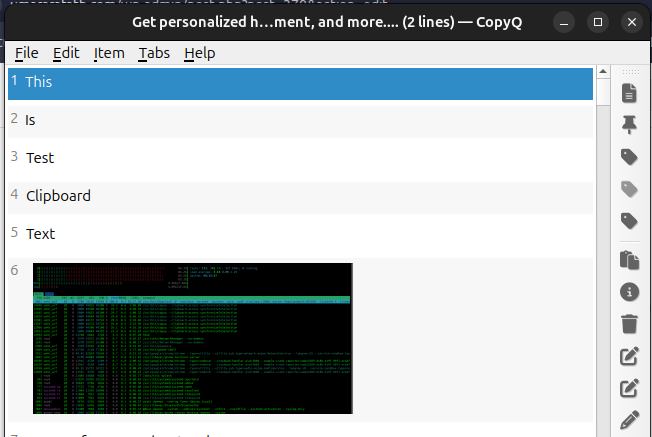
Windows + V is a lifesaver. On Ubuntu, CopyQ is the superior alternative. It handles text, images, and snippets with ease.
Installation & Startup:
sudo apt install copyq
To ensure it plays nice with the display server, add it to your Startup Applications with a slight delay as below
Name: CopyQ
Comment: A cut & paste history utility
Command:
sh -c "sleep 5 && QT_QPA_PLATFORM=xcb copyq"
Pro Tip: Go to Settings > Keyboard > View and Customize Shortcuts > Custom Shortcuts > Add Custom Shortcut and map Super + V with copyq toggle command to show the CopyQ menu for that native Windows feel.
5. Fast Screen Snips
The modern Windows “Snipping Tool” shortcut is Shift + Win + S. You can replicate this exactly in Ubuntu:
- Go to Settings > Keyboard > View and Customize Shortcuts.
- Select Screenshots.
- Change “Take a screenshot interactively” to
Shift + Super + S.
With these five tweaks, the “friction” of switching operating systems almost disappears. You get the stability of Linux with the intuitive UX of a modern desktop. Have fun
Have a specific Ubuntu tweak that saved your workflow? Let me know in the comments